
A useful rental condition report connects each observation to a specific place, date and set of photos. Start with any form your landlord or local process requires. Then use this rental condition report template for tenants as a working supplement: fill in what you actually observed, give each item a reference number, and keep the exact version you submit.
Download the printable condition report template or the condition report CSV. Both are blank organizational aids created by Tenacove. They are not official forms, legal compliance documents or a certification of a property's condition.

Choose the right form before filling in the template
First find the form, recipient and submission instructions that apply to your rental. Check your lease, move-in materials and management's instructions. If the instructions are unclear, ask where the report should go and how to include supporting photos. Do not assume that saving a personal checklist meets a required reporting process.
The structure can be simple. For example, Rutgers' rental inspection checklist puts move-in and move-out condition in separate columns and encourages photographs. Its layout is an example, not a nationwide prescribed form. Our download adds item IDs, photo references and an explicit place for unknowns.
Keep a supplied form intact. If it has little space, attach a clearly named supplement and identify the matching room or line on the supplied form. Avoid quietly rewriting a landlord's description or making a signature look like agreement when it only acknowledges receipt. If the meaning of a form matters to a dispute, seek local help before treating this article as an answer about your rights.
What belongs in a tenant condition report?
Separate information about the inspection session from information about each item. The session identifies the property and the actual date you looked. Each row describes one place or issue. That keeps a page of notes from becoming a collection of disconnected close-ups.
| Field | What to enter | What to avoid |
|---|---|---|
| Property and session | Property/unit, prepared by, observation date and report version | A full identity document or unnecessary personal details |
| Item ID and exact spot | A unique ID and a stable label, such as Kitchen → counter, left of sink | Several unrelated locations under “kitchen damage” |
| Visible observation | Surface, position, shape and visible extent in plain words | A guessed cause, repair cost or statement about responsibility |
| Photo references | IDs that lead to the matching original files | “See photos” when the folder contains dozens of images |
| Inspection limits | Not inspected, blocked view, date uncertain or another specific gap | A blank cell that could be read as “no issue” |
| Submission record | Actual sent date, channel, recipient and saved confirmation, when available | A planned send date entered as though delivery happened |
The template uses a separate field for the date the report was prepared. That date may differ from the observation date. If you write up notes the next evening, preserve both facts. A filename, phone date or upload time alone should not be presented as an independent authentication of the inspection.
Use the report for description. Send a separate maintenance request when something needs attention, following your building's actual reporting channel. Listing an item in your personal condition report does not, by itself, show that management received a repair request.
Connect each report row to a short photo index
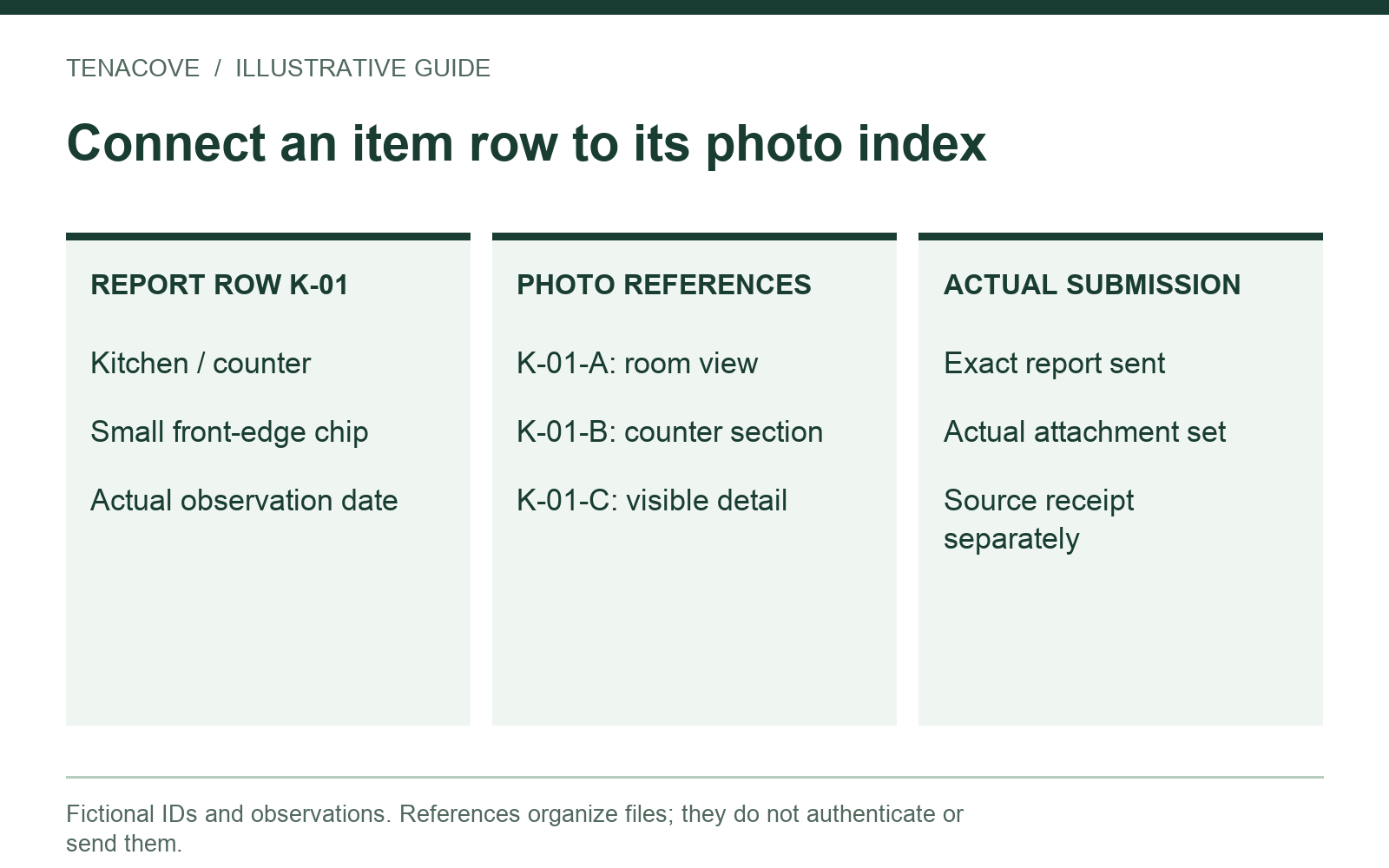
Give every observation its own ID before attaching images. For example, K-01 can identify a kitchen counter observation. The related photos might be K-01-A, K-01-B and K-01-C. These IDs are your organizing convention, not a technical requirement or an evidence rating.
A location view explains which part of the room you mean. A closer view shows the relevant feature. Add a detail only when it contributes something the other image cannot show. If you need help planning those views, use the move-in photo checklist; this report template is the place to connect the resulting files to written observations.
Worked example: a counter chip with a clear boundary
The following example is fictional. Suppose you observe a small chip on the front edge of the kitchen counter, left of the sink. You do not know when it appeared. A useful row describes that visible feature without deciding its age or cause.
| Record | Example entry | Limit to preserve |
|---|---|---|
| K-01 observation | Kitchen → counter, left of sink. Small chip visible on front edge. Observed [actual date]. | Cause and first occurrence unknown |
| K-01-A | Kitchen location view showing sink and counter | Does not show the chip clearly |
| K-01-B | Counter section showing the chip's position relative to the sink | Not a measurement |
| K-01-C | Close detail of the same front edge | Does not establish condition elsewhere |
| Submitted copy | [Actual report filename] with [actual attached files], sent via [actual channel] | Complete only after sending; retain the source confirmation separately |
Keep a mapping to the original filename if your working copy uses short IDs. You can put that mapping in the template's photo index or a companion file. Do not rename or edit your only copy of an original just to fit this example. If you make a smaller attachment copy, label it as a copy and retain the source file independently.
Mark unknowns and uninspected areas explicitly
“Not inspected” and “no issue observed” say different things. A wardrobe blocking a wall limits what you saw. An appliance you did not operate has not been checked for function. Write the limit in the row rather than using a reassuring tick that could imply a fuller inspection.
Do not move heavy equipment, enter an unsafe space or test a questionable electrical item to fill every box. Describe the accessible view and use the appropriate maintenance or emergency channel when needed. The goal is an accurate record of a safe observation, not a technical inspection.
If the report is completed after move-in, say so. A current photo describes current condition; it cannot reconstruct an earlier state. Write “photographed on [actual date]; earlier condition not photographed” when that is true. For a missing baseline, the separate guide to having no move-in photos explains how to keep older sources and later observations distinct.
Be equally careful with another person's account. “Roommate reports noticing this earlier” is different from your own observation. Record the source and uncertainty instead of turning someone else's recollection into an exact date.
Watch on YouTube ↗
Correct the working copy, then preserve what you actually submit
Before sending, read the report against the attachments. Does every image ID exist? Does each row identify the right spot? Can a reader open the files without relying on your phone's private photo library? Remove unrelated documents and check that personal information is not visible in the selected images.
If you notice a factual error, keep a clearly labeled corrected version. For example, add “v2 — location label corrected; observation unchanged” instead of silently replacing a previously submitted v1. A simple revision note makes it easier to understand what changed and when. It does not establish which version a recipient received.

Submit through the required or agreed channel. Save the exact report and attachment set that went with that submission. Keep the source sent email, portal receipt or other actual confirmation outside this template. A screenshot may be a convenient reference, but do not discard the original message or portal download because you took one.
A confirmation of receipt is also different from agreement with every observation. Quote the response accurately. If no response has arrived, write “no response saved as of [actual date]” rather than “accepted.” This template provides no universal submission deadline, acknowledgment rule or legal effect. For a jurisdiction-specific concern, USAGov's tenant-rights resource points to state agencies and housing help.
Use later records without overwriting the first report
Keep the initial report as a dated snapshot. If a repair happens later, add a new observation with its own actual date, then refer back to the original item ID. Describe what you can see after the visit. Preserve the repair message or work order separately instead of treating a new photo as proof of what work was done.
At move-out, use the same location labels and comparable views where possible. A new mark, a changed angle or a missing baseline may limit the comparison. Do not fill an old move-in cell using today's condition. Separate stages help a later reader understand the sequence without guessing.
Tenacove's photo-and-note workflow can give each observation a room, spot and stage. Saving it there does not submit your landlord's form or notify management. Keep that submission and its correspondence separately. The rental photo export guide explains how to keep an independently usable archive alongside your documents.
Rental condition report template FAQ
Can I use this instead of the landlord's official form?
Use the required form and procedure first. This download is a working supplement, especially for longer notes and a photo index. If attachments are allowed, identify which supplied-form item each extra row supports. The download does not determine what your lease or local rules require.
Does a condition report need the landlord's signature?
The answer depends on the applicable form and process. Do not add a signature requirement based on this template. Record who prepared your copy, and preserve any real acknowledgment with its wording. “Received” and “agreed” should never be used interchangeably without a basis.
Should I put all photos inside the report?
You can use a readable report with an accompanying photo index and files, if the receiving channel supports it. Embedded previews help orientation but do not replace separately retained originals. Check attachment limits, open the saved package yourself, and keep the exact version you sent.